Here’s a question that sounds odd at first. Could the cheapest, smallest, quietest computer in your house be your home server?
Not a Raspberry Pi. Not a NAS. Not an old laptop on a shelf, fan going, getting warm. I mean an ordinary Android tablet — the kind you’d hand a three-year-old to watch cartoons.
It turns out it can, and I’ve been running one this way for a while. A $100 tablet sits in my home right now, plugged into the wall. It runs a real Linux server that serves audio to a web app, over its own secure web address. It’s silent, about the size of a paperback, and it uses very little power. I’m as comfortable leaving it on as I am leaving my phone on.
I’m sixty, I don’t code, and I learned this from one talk at my family’s farm. Here’s how it works.
Why a Tablet Makes a Surprisingly Good Server
We tend to picture a “server” as something big, hot, and serious. But think about what a small home server actually has to do — stay on, stay connected, run a light program — and a tablet does well on most of it.
- It’s built to stay on. Think about your phone. It’s always on, and you don’t worry about it. A tablet feels the same. Leaving a laptop running 24 hours a day, lid open, fan going, somehow feels wrong, like you’re going to break it. A tablet left on is just a tablet. That comfort matters more than I expected.
- It uses little power. A tablet is made to last all day on a small battery. So as an always-on server, it uses very little. The power cost is small enough that I don’t really notice it.
- It’s silent and small. No fan, no noise. It disappears onto a shelf. You can put it in someone’s living room and they’ll forget it’s there.
- The specs are fine. Modern tablets aren’t toys. In memory and storage they hold up against laptops — mine has 128 GB of storage, the same as a laptop I paid more than three times as much for. (That comparison is the next post.)
- It’s cheap. Quite cheap. More on that next time too.
So why doesn’t everyone do this? Because of one real problem.
The One Catch: Android Isn’t a Server OS
Servers almost always run on Linux (or Windows). That’s the world web servers, databases, and their tools were built for.
A tablet runs Android. An iPad runs iPadOS. Neither is Linux. Out of the box, a tablet can’t run the software a server needs. That’s the wall that stops the idea before it starts, and it’s why “use a tablet as a server” sounds impossible to most people.
There’s one thing you need to know to get over that wall. A single name.
Termux: Linux, Hiding Inside Android
Termux is a free app that gives an Android device a real Linux environment. Open it and you get a Linux command line — the real thing — running on top of Android. From there you can install the same parts a “proper” server uses: a web server, a runtime like Node.js or Python, and so on. The tablet stops being a toy and becomes a small Linux machine.
That’s the whole trick. Android on the outside, Linux on the inside.
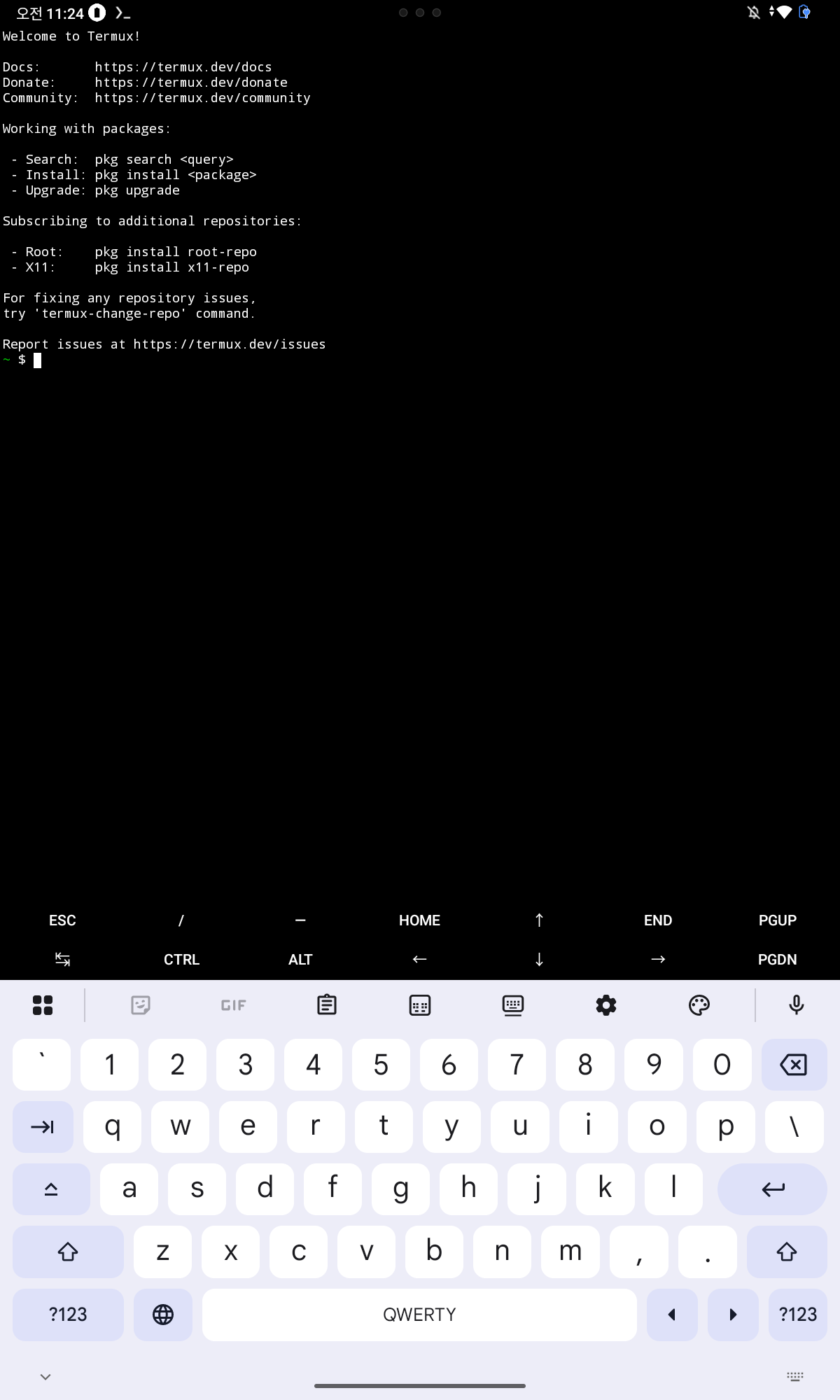
The Catch’s Catch: You Won’t Find Termux in the Play Store
Here’s where people get stuck, so I’ll be clear about it.
If you open the Google Play Store and search for Termux, what you find won’t work properly. Because of changes in Android’s app rules, the Play Store version is no longer kept up to date. The real, maintained Termux lives somewhere else: a different app store called F-Droid.
F-Droid is an app store for free, open-source Android apps — the kind that, for various reasons, aren’t on Google Play. You install F-Droid first, then install Termux from F-Droid. So the order is:
- Install F-Droid (the other app store) on the tablet.
- Install Termux from F-Droid (not from Google Play).
- Inside Termux, set up your Linux tools and run your app.
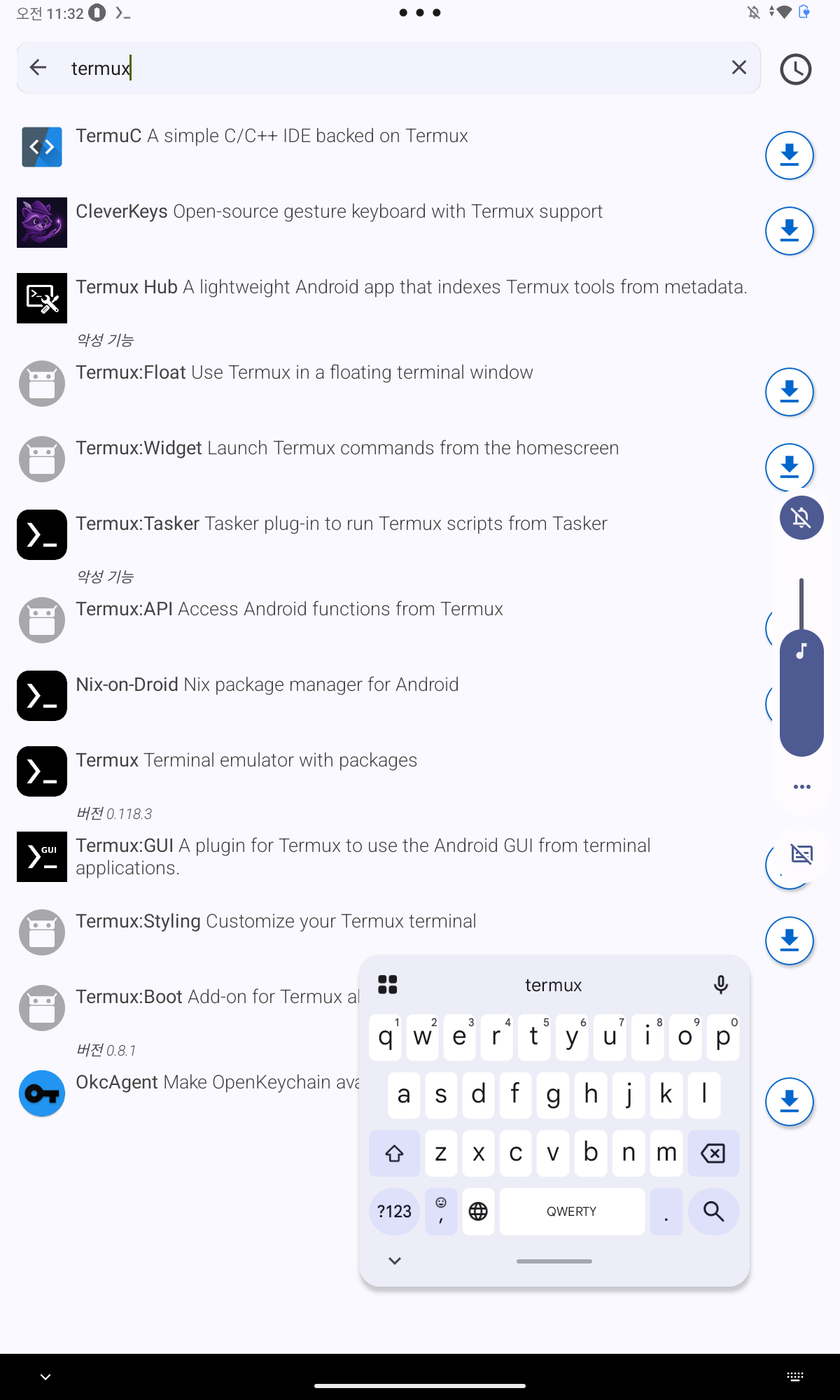
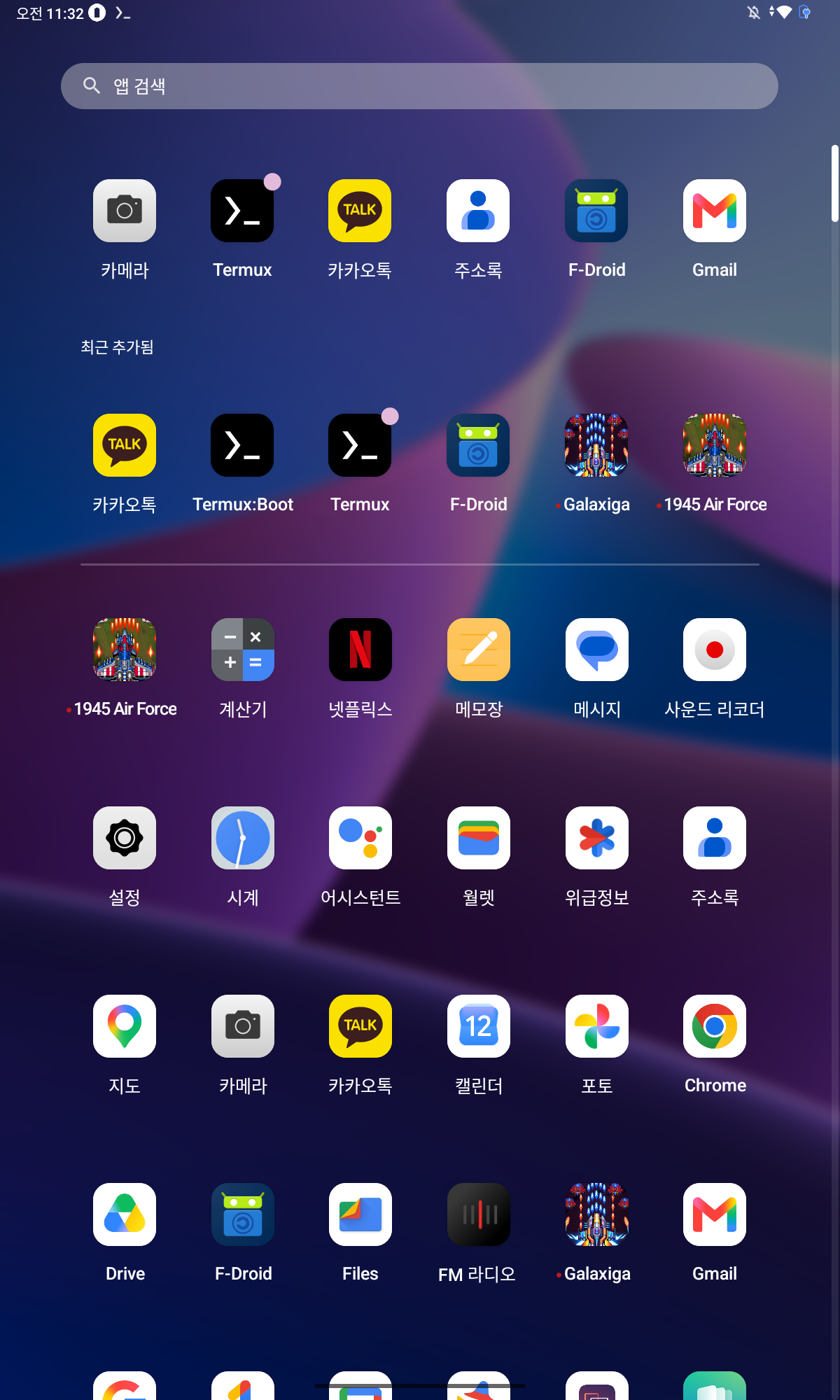
I won’t give you a wall of exact commands, for an honest reason. The exact steps depend on your tablet, your app, and when you read this. And in 2026 you probably don’t need me to. This is the point of my last post: once you know the names (F-Droid, Termux), an AI assistant like Claude Code will give you the exact commands for your setup. I knew nothing about how Termux works inside. I knew it existed, and that was enough to start.
One Setting to Change First: Protect the Battery
Here’s a practical detail that’s easy to miss, and it matters as soon as your tablet becomes an always-on server. It lives on the charging cable, all day, every day. A battery that sits at 100% on the charger, warm, for months, wears out faster. So before you walk away, go into Settings → Battery and change two things:
- Turn off power-saving / sleep mode. A server can’t doze. Power-saving modes slow the device down and can pause background tasks — the opposite of what you want when the whole point is to keep serving. Switch it off so the tablet stays awake.
- Turn on battery protection mode. Most modern tablets have a “protect battery” switch in the battery settings. With it on, the tablet stops charging to 100% and holds the charge in a healthier range — in my case, between about 40% and 60%. For a device that’s always on the cable, this is one of the best things you can do for its life and safety.
The menu names change by brand, but nearly every recent Android tablet has both. It takes two minutes, and it’s the difference between a server that quietly runs for years and one whose battery swells up by next winter.
Where I Learned This: A Farm, Last Winter
I didn’t discover any of this. My older brother handed it to me, the way he hands me everything technical — at our family’s farm by the Boseong River, over a holiday meal.
He builds these. As a job, he turns cheap tablets into small home servers and supplies them to schools and public offices as AI-education devices. So when I told him I wanted to put one of my apps somewhere small and self-contained, he didn’t hesitate: use a tablet. Here’s how. Termux. F-Droid. The whole path, explained between courses.
I wrote the names in my notebook and, as usual, didn’t really understand them. Months later, when I needed to put a whole library of audio onto a single device I could hand to someone, those two names were waiting for me. I pulled them off the shelf, pointed my AI assistant at the problem, and the tablet became a server in an afternoon.
Why I Wanted a Server I Could Hold in One Hand
A NAS is great for my family — it sits in my house and serves all of us. But this project was different. I wasn’t building something to live in my home. I was building something to give away: a self-contained little server I could set down in someone else’s living room, that would keep working long after I left.
For that, a tablet is hard to beat. It’s the whole computer, the whole library, and the whole server in one object the size of a book. You can wrap it up and hand it to an eighty-year-old man and say, here, this is yours.
That’s what this one is for. But the story of who I built it for, and how it became a kind of inheritance, is the heart of this series, and it’s coming.
Where This Goes Next
A tablet with the same 128 GB of storage as my new laptop cost me less than a third of the price. In the next post I’ll put the receipts on the table: the exact models I compared, why the one I almost bought made me wait, and the odd math of a “toy” that beats a “real” computer at the job of being a server.
If you’re following along, please subscribe.
Key Takeaways
- An ordinary Android tablet can run a real Linux server: silent, small, low-power, and easy to leave on like a phone.
- The problem is that Android isn’t a server OS — and the fix is Termux, which puts a real Linux environment inside Android.
- Don’t install Termux from the Play Store (that version is outdated). Install F-Droid first, then install Termux from F-Droid.
- You don’t need to memorize the commands — once you know the names, an AI assistant fills in the exact steps for your device.
- A tablet server is small enough to give away, which makes it a good fit for building something for someone else.