The official specs for the Synology DS224+ say the maximum RAM is 6 GB. This is made up of 2 GB built-in and one 4 GB SO-DIMM module.
Still, I ordered an 8 GB module. I will tell you why and how I made that decision.
What AI Tools Said
I asked both Gemini and Claude Code about compatible RAM for the DS224+. Both gave the same answer. They said officially, the maximum added module is 4 GB (for a total of 6 GB). But they also said what actually works is different. Community users have installed 8 GB modules and are successfully using 10 GB of RAM. There is no guarantee, but there were no reported failures either.
This difference between official specs and real user reports is common for consumer NAS devices. Manufacturers only test and certify specific setups. This does not mean other setups will fail. It just means they haven’t been tested or certified.
I decided to try the 8 GB module. If it doesn’t work, I would lose ₩76,000 (about $55). I felt this was a risk worth taking.
First: I Wanted to See the Slot for Myself
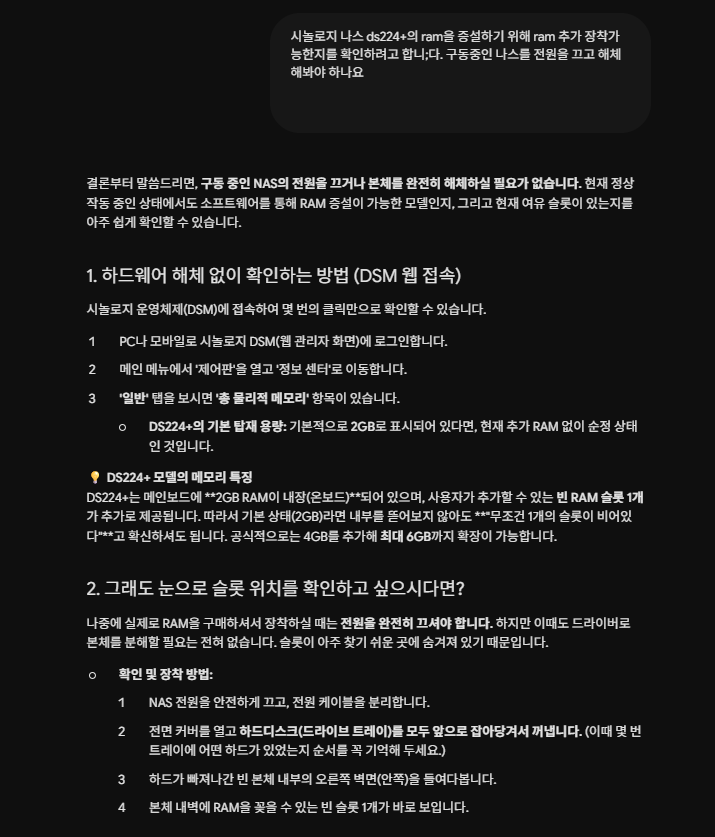
Before ordering, I wanted to make sure there was actually an empty slot for installation. I asked Gemini how to safely power off the device, open it, and check for the empty slot.
Shutting Down the NAS I Once Accidentally Unplugged
I was extra careful at this point. Not long ago, I had pulled the power cable from my NAS without proper shutdown. Nothing critical happened, but I wasn’t sure if I had handled it correctly. A NAS with Docker containers and active file systems running is not like turning off a lamp.
I asked Gemini how to properly shut down the DS224+. The answer was this: Press the power button for a few seconds until you hear a ‘beep’, then let go. The NAS will start its normal shutdown process, like stopping containers, flushing write caches, and unmounting volumes. Then it will power itself off. Do not keep holding the button to make it power off immediately. That is a forced shutdown and not a safe one.
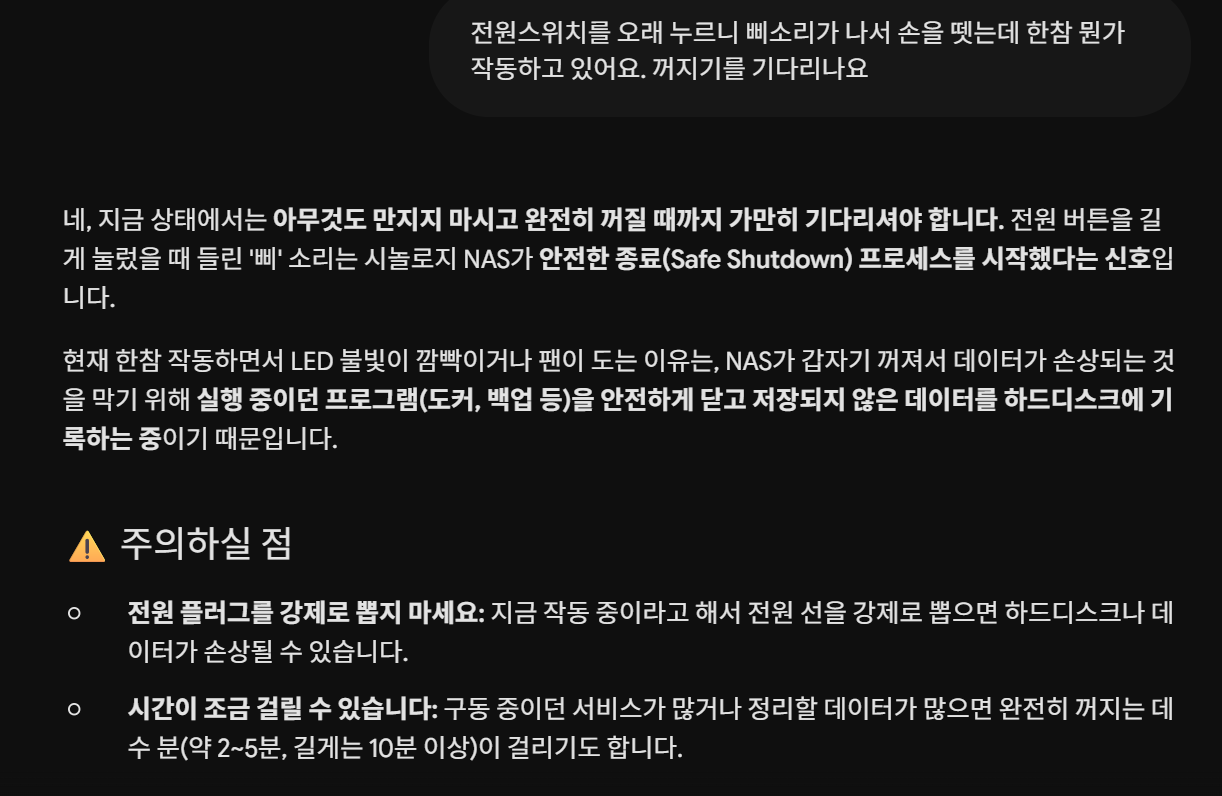
I pressed the button. It ‘beeped’, and I let go.
But the NAS kept running. The fans were spinning, and the drive activity lights were on. For a few minutes, I wasn’t sure if it had worked correctly or if I had done something wrong. I asked Gemini again. Gemini said, ‘Wait.’ The shutdown process can take 2 to 5 minutes, sometimes even longer, depending on how many containers are running.
I waited. A few minutes later, everything stopped.
I felt relieved. It was a clean shutdown.
Gemini’s answer when I asked how to safely power off the DS224+. Key phrase: Wait — it can take 2 to 5 minutes, sometimes even 10 minutes.
Opening the Case and Checking the Slot
With the NAS powered off, I removed the drive trays and opened the bottom panel. The RAM slots were immediately visible. There was one slot with the existing module (the built-in 2 GB), and next to it, an empty slot.
This confirmed there was space for a new module.
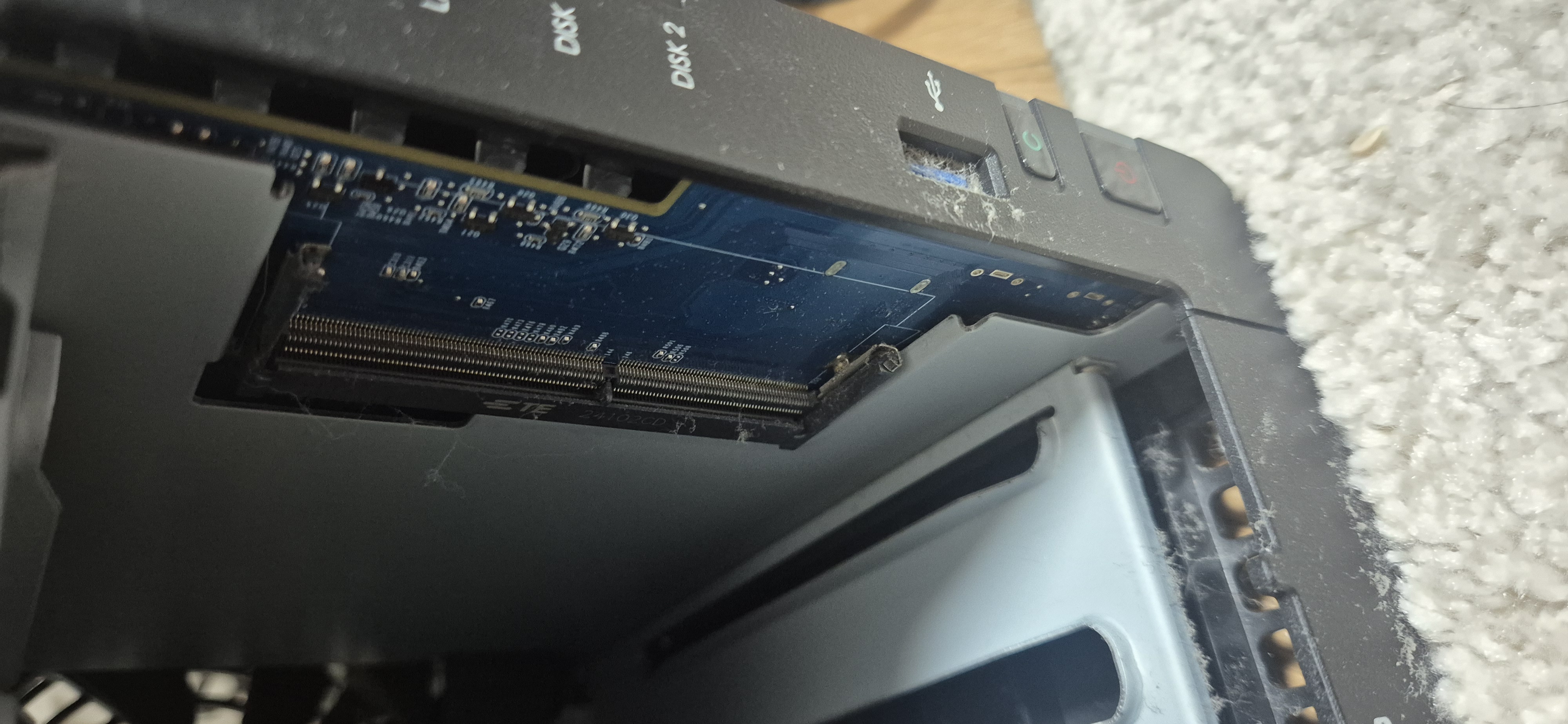 The empty slot next to the existing 2 GB module. It was dustier than I expected.
Finding the Right Module — And Avoiding Used Ones
I searched for DDR4 SO-DIMM 8 GB PC4-3200 on a Korean online marketplace. The first search result looked fine on the listing page. It had a reasonable price and the exact specs. I also read the product reviews carefully.
 This one might have been used. Some items show this in the product description. But for this item, someone wrote in a review that they bought it without knowing it was used. ₩69,000 (about $50)
I moved on and found a new Samsung DDR4 8 GB PC4-3200AA (25600S) laptop module. This is the same form factor the DS224+ uses. It was selling for ₩76,000 (about $55).
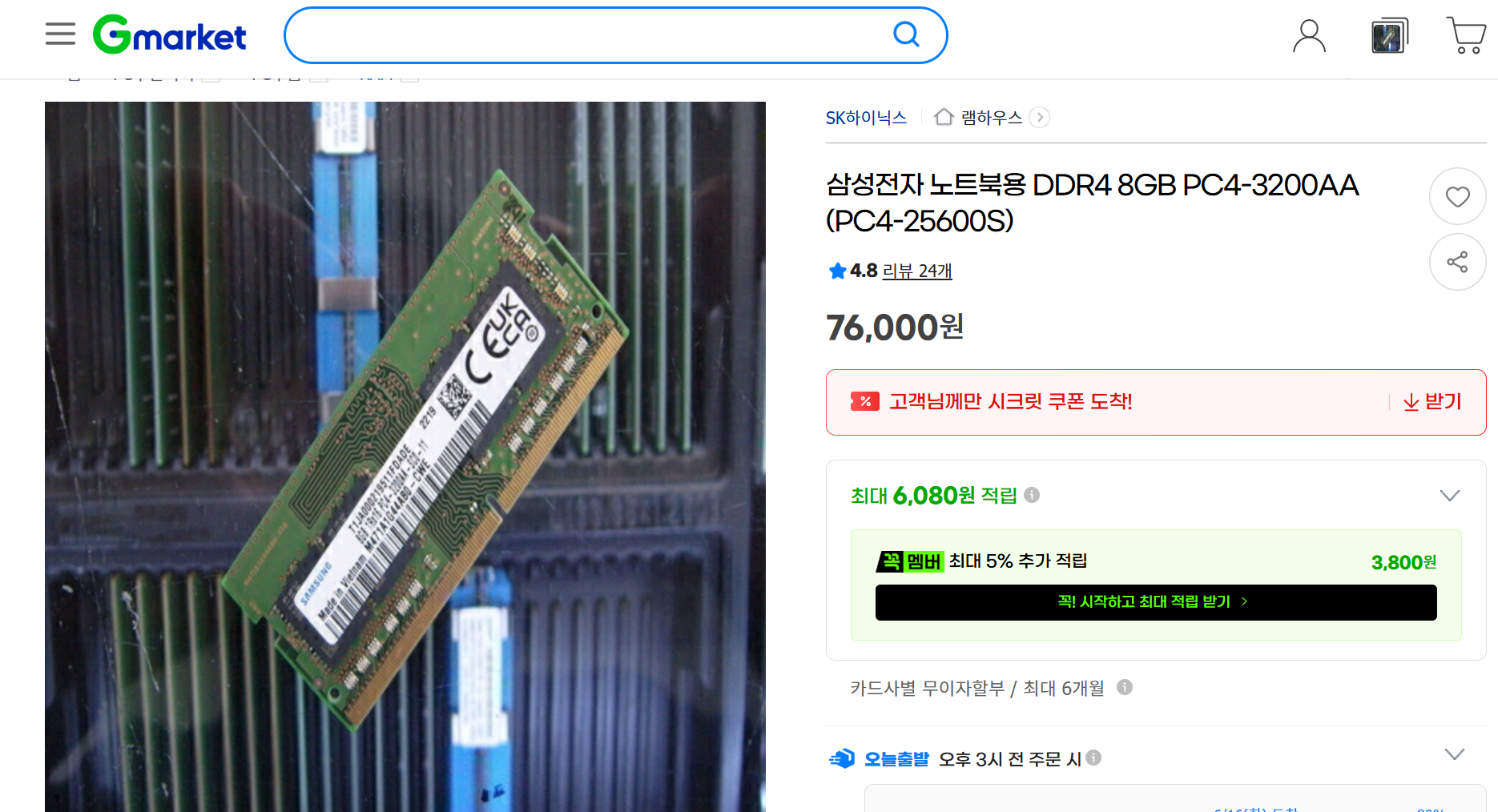 Samsung DDR4 8 GB PC4-3200AA. New product. From Gmarket for ₩76,000 (about $55).
For a module going into a server that runs family apps, a difference of ₩7,000 (about $5) to choose new instead of used was not a hard decision.
What I’m Still Not Sure About
To be honest: I don’t know if it will actually show 10 GB once I install this module. The official specs say 6 GB. Gemini and Claude Code said that according to community reports, not official tests, 8 GB should work.
I will find out when the module arrives. If it works, the next post will show the before and after. If it doesn’t work, that story will be the post instead.
Either way, my daughter’s 12-second wait in Kids Player will soon be over.