My daughter is three. My phone takes about 6,000 photos and videos a year — maybe more.
I don’t have 6,000 interesting shots. Most of it is accidental taps, blurry motion, seventeen near-identical photos of the same bread I was about to eat. But somewhere in that pile are the clips I actually care about: her first steps, her laughing at something she found hilarious at the time, moments my wife and I know we’ll want to see again when she’s older.
The problem is getting to them. And once you’ve found them, getting them to play in a way that makes sense.
This post is about the full system I built to solve that — from the moment a video leaves my phone to the moment my daughter watches it in the app I made for her.
Step 1: The Backup That Runs Without Thinking
The first job is simple but important. If my phone breaks or gets lost, the footage disappears. So I set up automatic backup: whenever my phone connects to our home Wi-Fi, it quietly pushes new photos and videos to our Synology NAS. No tapping required. I put my phone on the charger at night, and by morning everything new is already on the NAS.
My wife’s phone does the same.
This is not a fancy system. Synology has a phone app for exactly this. But the result matters: the NAS holds two full years of footage from two phones. Everything, including the accidental taps and the blurry bread.
That’s the backup. That’s the safety net. But a backup folder is not an album.
Step 2: The Problem with 6,000 Files in a Folder
Open the NAS backup folder and here’s what you find: a flat list of machine-named files. 20250814_083217_001.mp4. 20250814_091043_002.jpg. It scrolls for pages. No preview. No way to know what’s in a video without opening it. No way to find “the clip from May where she laughed at the dog” without going file by file.
About 6,000 files per year from one phone. That’s roughly ninety pages of thumbnails if you show sixty-four per page.
And these files aren’t just growth records. They’re everything on our phones — receipts, screenshots, dinner photos, all in the same folder with no label telling you which is which.
I needed a tool to browse the raw backup, find the good ones, and move them somewhere my daughter’s app could play them.
Step 3: The Picker — A Browser Tool for Sorting the Pile
I built a small Python program called pick_yeju that runs on my PC and opens in a browser. It shows the NAS backup folder as a gallery.
Thumbnails, finally. Videos show a frame grabbed from the first half-second. Photos show the image itself. This turns ninety pages of cryptic filenames into something you can actually browse.
Multi-select and copy. I tick the clips I want, hit “Copy to NAS,” and the tool reads the date from each filename and puts the file into the right folder automatically:
growth records / 2025 (video) / 08 / ...
growth records / 2025 (photo) / 08 / ...
No renaming, no dragging, no deciding where to put it. The filename already carries the date.
The part that makes multi-session work. Because sorting 6,000 files is not a one-sitting job, I run the picker over several days. When I reopen it, it jumps to the page where I left off — the last page where I’d copied something. Files I’ve already copied appear with a red border. I can see immediately where I stopped, uncheck those, and keep going from there.
That one feature — remember where you were, show what you’ve already done — is what makes the job feel manageable instead of endless.
Step 4: The Transcoder — Making Videos Actually Play
Copying files to the NAS is not the last step. Videos from our Galaxy phones are recorded in HEVC (H.265) at around 14 Mbps. Two problems: Chrome on tablets doesn’t decode H.265, and 14 Mbps through a Cloudflare Tunnel — limited by our home upload speed — buffers constantly.
So after picking, I run a second script: transcode_yeju. It finds videos in the growth records folder that haven’t been converted yet and runs ffmpeg on each one:
- H.265 → H.264
- Longest side capped at 1280 pixels (portrait stays portrait, landscape stays landscape)
- CRF 23 — roughly the quality of a good streaming service
- AAC audio at 128k
-movflags +faststartso the browser can start playing before the whole file loads
Result: average file size drops from about 14 Mbps to 2–3 Mbps. About 85% smaller. Playback became smooth.
I run this on my PC, not the NAS. The NAS has a Celeron processor; converting video on it is slow. My PC handles it much faster, and the NAS only needs to serve the finished file. The originals stay in the backup folder, untouched.
One thing that surprised me during development: ffmpeg kept throwing errors when I passed it the file path directly. The folder name in Korean was the culprit — the subprocess was getting an encoding it couldn’t handle. The fix was to pass ffmpeg a localhost URL instead of a file path, which kept everything in ASCII.
Step 5: The App — Month by Month, No Database
Once the videos are converted and in the right folders, the Kids Player app can see them. The first version of this feature held fifteen clips in a flat list. That worked at fifteen. At 200, it was a wall.
So I added year-and-month folders, and a grid to navigate them.
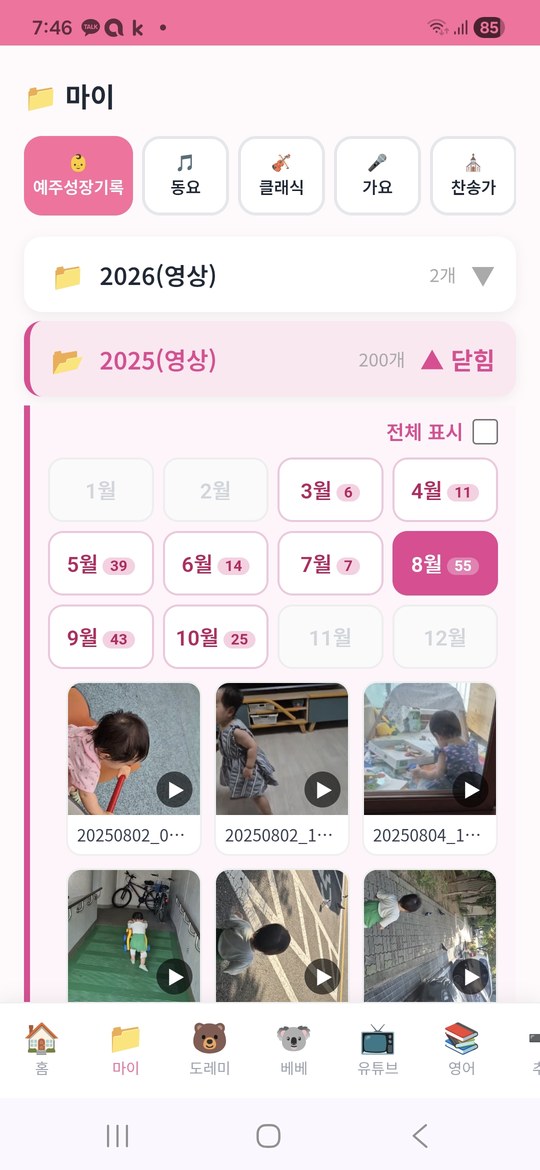
Tap the year, and the months appear as buttons. Each shows its own count: March has 6, May has 39, August has 55. Empty months are greyed out. Tap a month and you see only that month. Tap “show all” and you get the whole year.
There is no database behind this. The folders are the structure. When the app wants to know how many videos are in August 2025, it opens the 08 folder and counts what’s there — live, right then. The count is always correct. Drop in a new file and the count goes up on the next load. Nothing to index, nothing to keep in sync.
The counts tell their own small story. August has 55 because that’s when we were outside the most. February has nothing — it was cold and we mostly stayed in. I didn’t plan for that. It just appeared once the months had their own drawers.
The Numbers So Far — and What’s Still Coming
Right now: about 200 videos, seven months of my phone, mostly 2025. My wife’s two years haven’t been picked yet. When that’s done, the folder will probably hold over a thousand clips.
Nothing needs to change for that. The folders will just have more in them, and the counts will be larger. The system scales by adding files, not by changing code.
What This Cost
- Phone backup to NAS: $0 (Synology’s phone app, already had it)
- Picker tool: $0 (Python, runs on my PC)
- Transcoder: $0 (ffmpeg, free)
- Hosting: $0 (the NAS we already owned)
- Monthly: $0
The only real cost was the NAS and drives, which I had for other reasons anyway.
Why Not Just Use Google Photos
Google Photos backs up your phone and lets you browse it. It’s easier to set up than what I described above.
But it stores your photos on someone else’s servers, for free, which means there’s a cost that isn’t money. It needs an account. It can change its terms. And it doesn’t connect to my daughter’s player — the same app she uses for her nursery songs and her favorite stories.
What I have now: the backup is ours. The picker runs on our PC. The app runs on our NAS. My daughter watches clips in one place, with no algorithm deciding what comes next.
It took a few months to build all the pieces. But every piece is one I understand and can fix myself when something breaks.
Key Takeaways
- Phone auto-backup saves files. A picker tool makes them browsable. They’re different problems, and you need both.
- At 6,000 files a year, you need thumbnails, multi-select, and a way to resume where you left off across multiple sessions.
- HEVC video from modern phones doesn’t play in Chrome and is too large for home upload speeds. Pre-converting to H.264 at CRF 23 cuts file size by about 85% and solves both problems at once.
- A folder structure that encodes year and month lets you skip the database entirely. The filesystem already knows what it holds.
- Building this across multiple days is normal. Mark what you’ve already processed, open to where you left off — that’s the difference between a tool you use and a tool you abandon after the first session.